Export / Import
You can save the settings currently configured in the app to a file. You can then use a file created in this way to import these settings back into the app. You can use this for data backup, but it’s also possible, for example, to manage multiple files with different settings or accounts and use them as needed. You can also use such a file to transfer your settings to the app on another device.
The file stores the email account configurations, general settings, and, if available, the PGP keys.
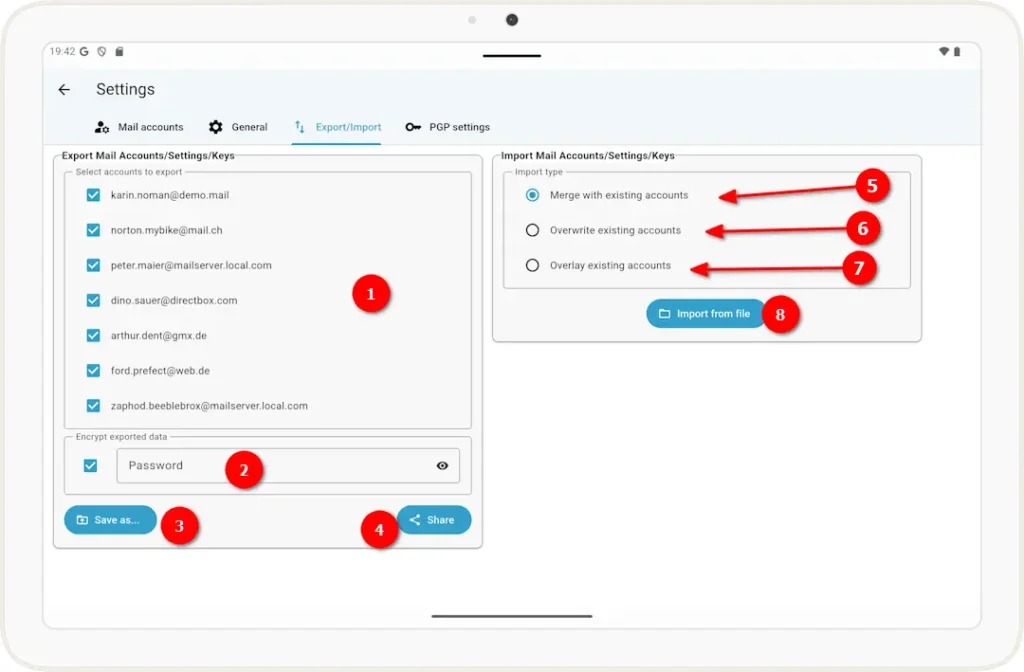
Export
1. Check the boxes next to the email accounts you want to export
2 If you check this box, you must enter a password to save the file in encrypted form. Without a password, the file will not be saved in encrypted form. Encrypted files are saved with the .pgp extension, and unencrypted files with the .json extension.
Warning: If you have set a password, keep it in a safe place; it is not possible to recover the file without the password.
3 When you click the Save button, a file dialog box opens, and you can save the settings file to your file system.
4 If you use the Share button, you can send the settings file to an app installed on your device that will handle saving the file (e.g., network sharing)
Import
5 If this radio button is selected, the imported email accounts will be added to the existing ones. The import settings will override the existing ones.
6 If this radio button is selected, all existing settings will be deleted and replaced by the imported email accounts and settings.
7 If this radio button is selected, the app initially behaves as described in (6). However, the existing accounts and settings are not actually deleted; instead, they are overwritten by the imported ones. After closing and reopening the app, the old accounts and settings will be restored.
8 Clicking this button opens a file dialog that allows you to open a saved settings file.
Note: You can also launch the app directly using a settings file. To do this, use the "Share" or "Open with…" option and select the Slow Mail app.