Read email
To open an email and read it, tap the subject line in the email list.
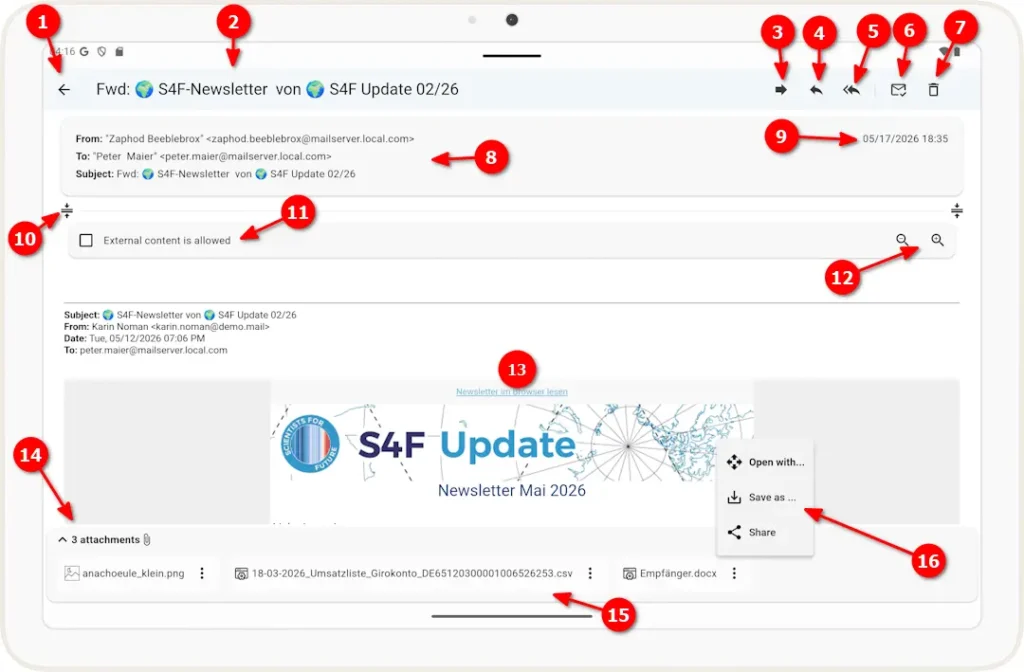
1 Click the left arrow to return to the email list and close the email view.
2 The subject line of the email received.
3 Forward this email to another address
4. Reply to the sender’s address, with this email included in the reply.
5 Same as 4, except that the reply is sent to the sender and all other recipients of this email.
6 Mark this email as read (if the email is already marked as read, you can unmark it here).
7 Deletes this email (after a confirmation dialog) and returns to the email list.
8 Display of the email header information.
9 Display of the date this email was received.
10 Use this button to expand or collapse the mini toolbar in the reading pane.
11 Turn on or off the blocking of external content.
12 Use these icons to enlarge or reduce the font size in the reading area.
Note: You can also do this using the two-finger pinch gesture.
13 Displaying the email content.
14 If the email has attachments, this line will appear. Click the ∧ to open the list.
15 List of Attachments.
16 For each attachment file, the pop-up menu can be opened by  . The attachment can then be saved as a file in the file system, shared via a sharing app, or opened in a related app.