Email List
The right-hand pane of the main window (or the central pane on narrow screens) displays the email messages from the active email account in the selected email folder. The list is sorted in descending order by the date the emails were received. To view older messages, you can scroll down the section (since the messages are loaded as you scroll, you will initially see only a list of dots, which will gradually fill in). To open a message to read it, tap the subject line.
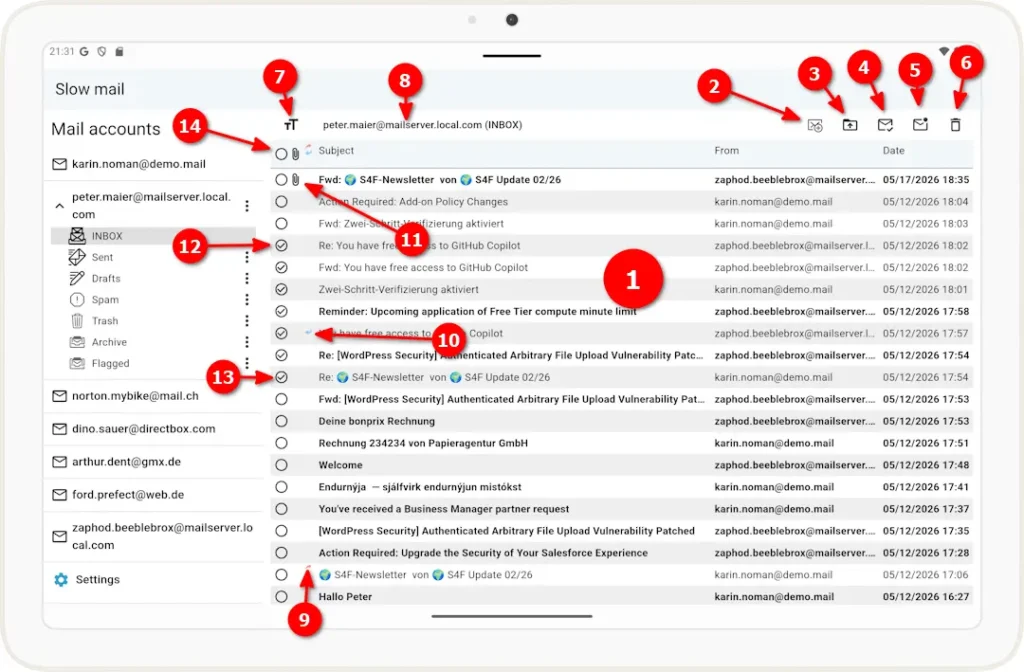
1 List of email messages in the selected folder, with columns for Subject, Sender’s Email, and Date and Time Received. You can scroll left to view the Recipient List and PGP Encrypted columns.
Messages that have not yet been marked as read are displayed in bold. To open a message and read it, tap the subject line.
2 Create a new, blank email
3 Move/copy selected emails to a folder (to select, see steps 12–14)
4 Mark selected emails as read (for instructions on how to mark emails, see steps 12–14)
5 Mark selected emails as unread (for instructions on how to mark emails, see steps 12–14)
6 Delete selected emails (to select, see steps 12–14)
7 Tap to display a slider that allows you to change the font size for the email list section
8 The active email account is displayed here, with the email folder shown in parentheses.
9 The red forward arrow indicates that this email was forwarded from the current email account.
10 The blue backward arrow indicates that this email was replied to from the current email account.
11 The paperclip icon indicates that this email contains one or more attachments.
12 You can select an email by tapping the circle (see steps 2–6)
13 To select a range, select an email (see 12) and then double-tap at the end of the range.
14 Tap the circle in the header to deselect all items.