New email
In this window, you can compose and send a new email. To open it, select option 2 from the email list.
Note: When you are in the text entry area, the address fields are collapsed to enlarge the entry area. is displayed in place of the address fields. You can tap on it to display the address fields again at any time.
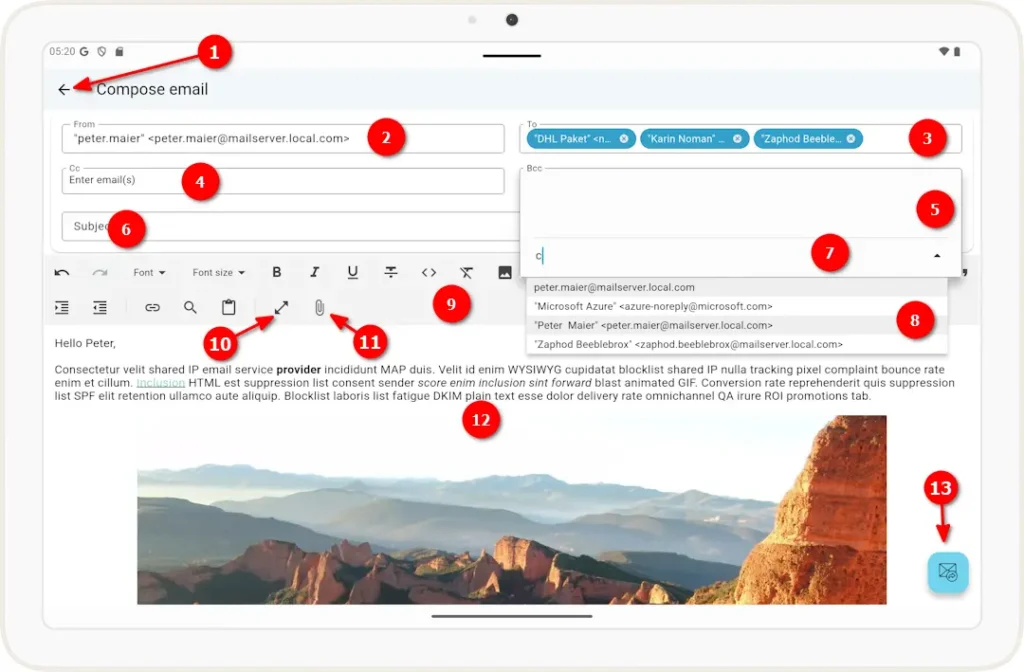
1 Click the left arrow to return to the email list and close this view.
2 The sender of this email. The email address associated with the email account is suggested here.
Note: You can change the sender address, but the email will only be sent successfully if your email provider recognizes this address as a valid sender address.
3 Recipient address(es) for this email. In fields that allow multiple email addresses, the individual addresses are displayed as “dots.” You can remove an address by tapping the X next to it. You can edit an address by tapping the address text.
4 email addresses to which this email will be copied.
5 email addresses to which this email will be copied without those addresses being visible to the other recipients.
6. Input field for the email subject line
7 When you tap an address field, it expands downward. You can add an address in the bottom row. This allows you to enter multiple addresses.
8 When you enter characters in the expanded address field, a list of email addresses—compiled from the emails listed so far—will appear, from which you can select one.
9 Toolbar for formatting the email text, such as font, alignment, etc.
10 Click this button to expand the input window to full screen so you can create content without distractions.
11 Use this button to attach files from your computer to the email.
12 The content of the email.
13. Button to send the email.